
Common Microphone Issues
🔴 Clicking record, and nothing happens (no timer appears)
Section titled “🔴 Clicking record, and nothing happens (no timer appears)”Possible causes
- Server or Remote Desktop Session
- Cause: You’re in a server or remote desktop session - common for RxWorks & Teleos clinics.
- Solution: Minimise the server or remote session. The server does not have access to the microphone. Minimise the server, open the browser on the underlying computer.
- Microphone Issues
- Cause: No microphone attached or it’s not plugged in.
- Solution: Confirm the microphone is plugged in and the light is on. Most desktop computers do not have a built-in microphone, although laptops do.
🔴 Clicking record, recording starts, but no audio found
Section titled “🔴 Clicking record, recording starts, but no audio found”- The timer starts, but the audio wave does not move.
- VetNotes may show Microphone stopped sending audio, or stop the recording and show No audio detected.
- This means the browser can find the microphone, but it cannot “hear” any audio.
Common Causes and Solutions
- Unmute the microphone - if the light on the mic is red, the microphone is muted. To fix, tap the top of the mic, the light will turn green, and work as normal.
🔴 Permission error
Section titled “🔴 Permission error”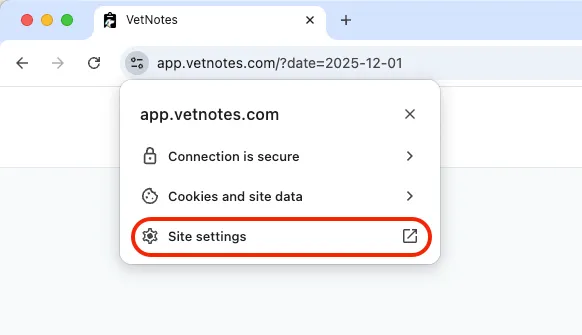
VetNotes may not have access to the microphone.
- Go to the settings of your web browser.
- Find app.vetnotes.com
- Update Microphone settings to “Allow”
🔴 Chrome extension cannot access microphone
Section titled “🔴 Chrome extension cannot access microphone”Please see this article.