
How to use Clinical AI
Ask Clinical AI about a case, and use its answer, in a few steps.
Step 1: Open Clinical AI
Section titled “Step 1: Open Clinical AI”For any question, click ClinicalAI™ at the top of the page.

For one consult, open the recording and click the ClinicalAI™ button under its title. A panel opens on the right, with that recording already added as a source.

Step 2: Add your sources
Section titled “Step 2: Add your sources”Sources are what Clinical AI reads before it answers, like a recording’s notes and transcript.
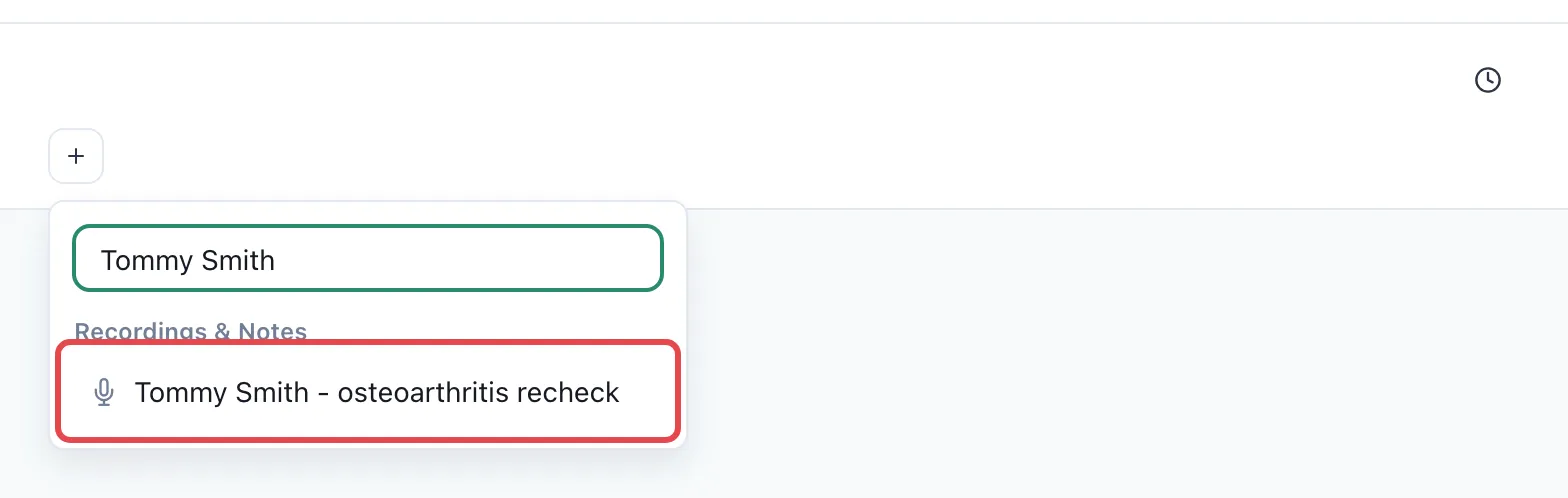
- Click the + next to your sources, at the top of Clinical AI.
- Search for the recording by name, for example “Tommy Smith”.
- Click it to add it.
Click the eye icon on a source to see what’s in it, or the x to remove it.
Step 3: Add a file (optional)
Section titled “Step 3: Add a file (optional)”To ask about a lab report, a referral letter or a photo, click the + at the left of the message box and choose the file. You can also drag a file onto the message box, or paste an image.

Step 4: Ask your question
Section titled “Step 4: Ask your question”Type your message and press Enter. For example: “Tommy is still sore on his hips after a month on meloxicam. What else can I try?”
To start from a saved message, click the lightning bolt at the left of the message box. See custom shortcuts.
Then ask follow-up questions, like “Write that up as a handout for Jenny.”