
How to use dental charting
Dictate a dental and get a finished chart in four steps.
Step 1: Choose the Canine dental chart template
Section titled “Step 1: Choose the Canine dental chart template”On the consult, choose Canine dental chart as the template. You can choose it before you record, or afterwards with Choose Template.
Step 2: Dictate the dental
Section titled “Step 2: Dictate the dental”Record as usual. Say the tooth number and what you find. For example:
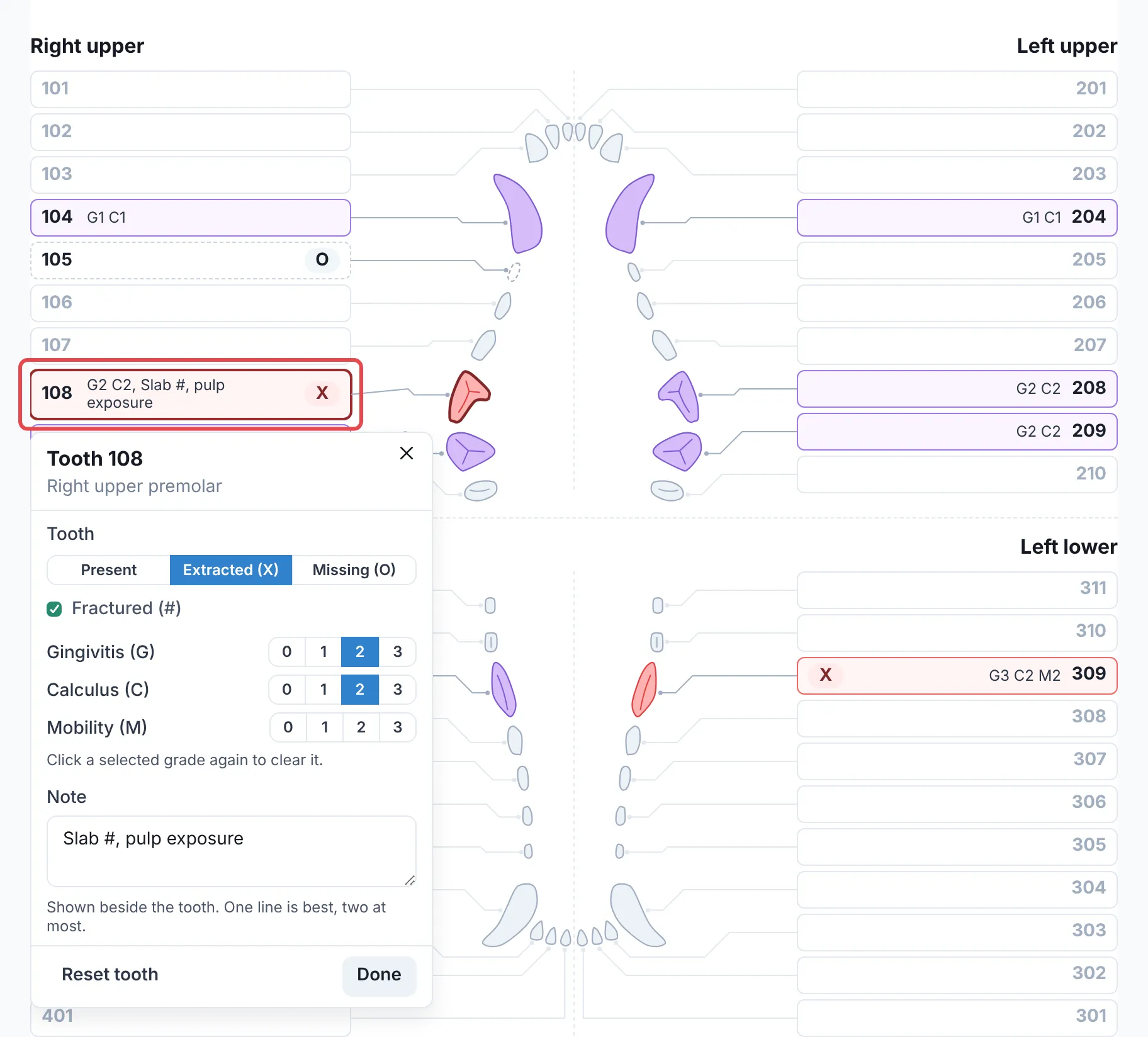
“108 slab fracture with pulp exposure, extracted. 309 mobility grade 2, extracted. 409 calculus grade 2, gingivitis grade 2. Meloxicam for 3 days, recheck in 2 weeks.”
VetNotes marks each tooth you mention on the chart. Everything else, like medications and the plan, goes in the comments under the chart.
Step 3: Check the chart
Section titled “Step 3: Check the chart”Click any tooth to change it. Choose whether it’s present, extracted or missing, set the grades, add a short note, then click Done. Changes save automatically.
Step 4: Save the chart and attach it to your PiMS
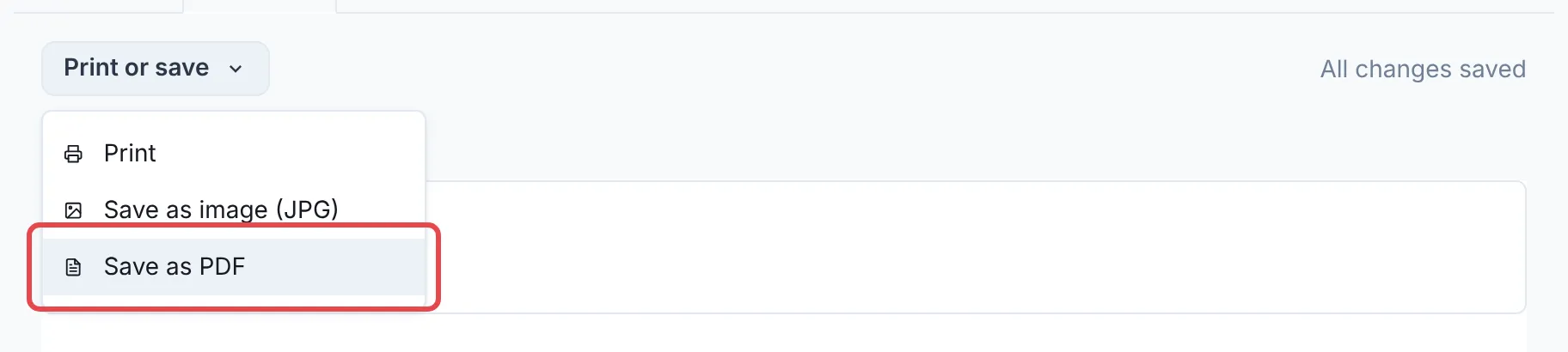
Section titled “Step 4: Save the chart and attach it to your PiMS”Click Print or save, then Save as PDF. Attach the file to the patient’s record in your PiMS.
Good to know
Section titled “Good to know”- Dental charts aren’t sent to your PiMS automatically, so remember to attach the file.
- Teeth use modified Triadan numbers.
- Check and save charts in the VetNotes web app. You can record a dental in the mobile app, but it can’t show the chart yet.