
Add the same wording to every note
You can now add your clinic’s standard wording to every note VetNotes writes. A compliance phrase is a line of text that goes at the top or bottom of each new note, word for word.
Benefits
Section titled “Benefits”- Never forget the wording. It’s in every note, without anyone typing it.
- Show how the note was made. Say that an AI scribe drafted it and the vet checked it.
- Same wording for everyone. Every vet and nurse in the clinic gets the same line.
- Change it in one place. Update the phrase once, and every new note uses it.
When to use it
Section titled “When to use it”- AI scribe statement. “This note was drafted with an AI scribe and checked by the treating vet.”
- Consent to record. “Consult recorded with the client’s permission.”
- A check for the vet. “Checked by Vet: Y/N” at the top, for the vet to fill in before saving the note.
- Estimates. “Estimate discussed with the client and accepted.” Turn it on only when your clinic wants it.
How to use it
Section titled “How to use it”There’s nothing to do. Record your consult as normal. When VetNotes writes the note, your phrases are already in it.
Here, Dr Emma Taylor’s note for Tommy’s osteoarthritis recheck has one phrase at the top and one at the bottom.
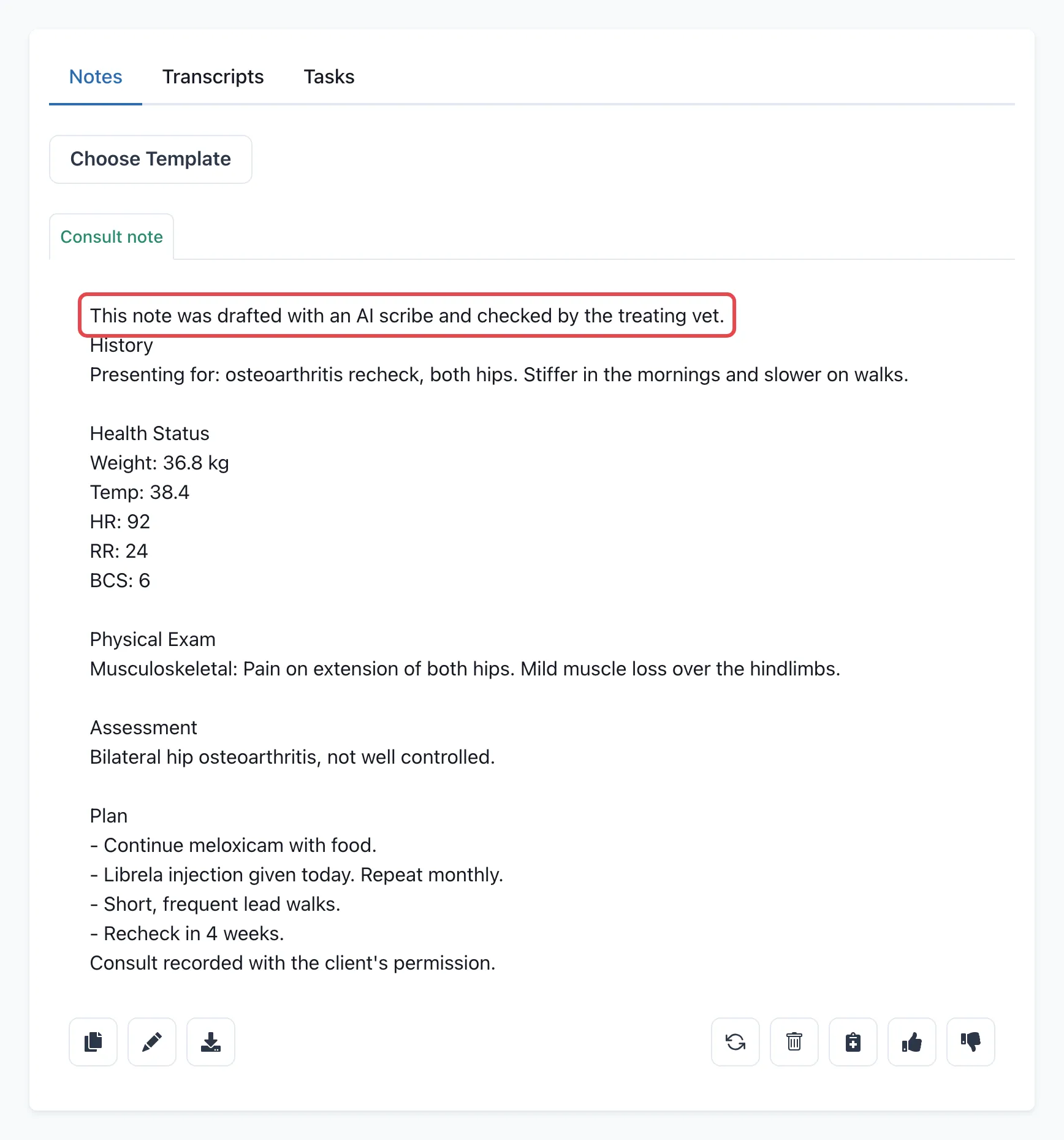
The phrase is part of the note, so it’s there when you copy the note or send it to your PiMS.
Good to know
Section titled “Good to know”- Phrases go into new notes only. Notes you already have don’t change.
- If you add more than one phrase to the top (or bottom), they appear in the order you added them.
How to set it up
Section titled “How to set it up”Anyone in your clinic can add or change compliance phrases. Agree on the wording as a team first, because changes affect everyone’s notes.
| Setting | What it does | Who can change it | Applies to |
|---|---|---|---|
| Compliance Phrases | Text added to the top or bottom of every new note. | Anyone in the clinic | Your whole clinic |
Add a phrase
Section titled “Add a phrase”- Go to Settings → Compliance.
- If you belong to more than one clinic, choose the clinic at the top of the page.
- Click Create Compliance Phrase. Or click one of the Quick Start suggestions to start from it.
- Type the wording under Compliance Phrase.
- Under Position, choose Add to top of notes or Add to bottom of notes.
- Click Create.
To change or remove a phrase, click the pencil or bin icon next to it. To stop using a phrase for a while without deleting it, edit it and turn off Enabled.