
How to summarise records from other vets
Upload the records another clinic or vet sends you, and get a summary in a few steps.
Step 1: Open History Summariser
Section titled “Step 1: Open History Summariser”In the VetNotes web app, click History Summariser in the menu at the top of the page.
Step 2: Add the records
Section titled “Step 2: Add the records”Drag the records you’ve been sent onto the box, or click click to select and choose them. You can add PDF and Word (.docx) files.
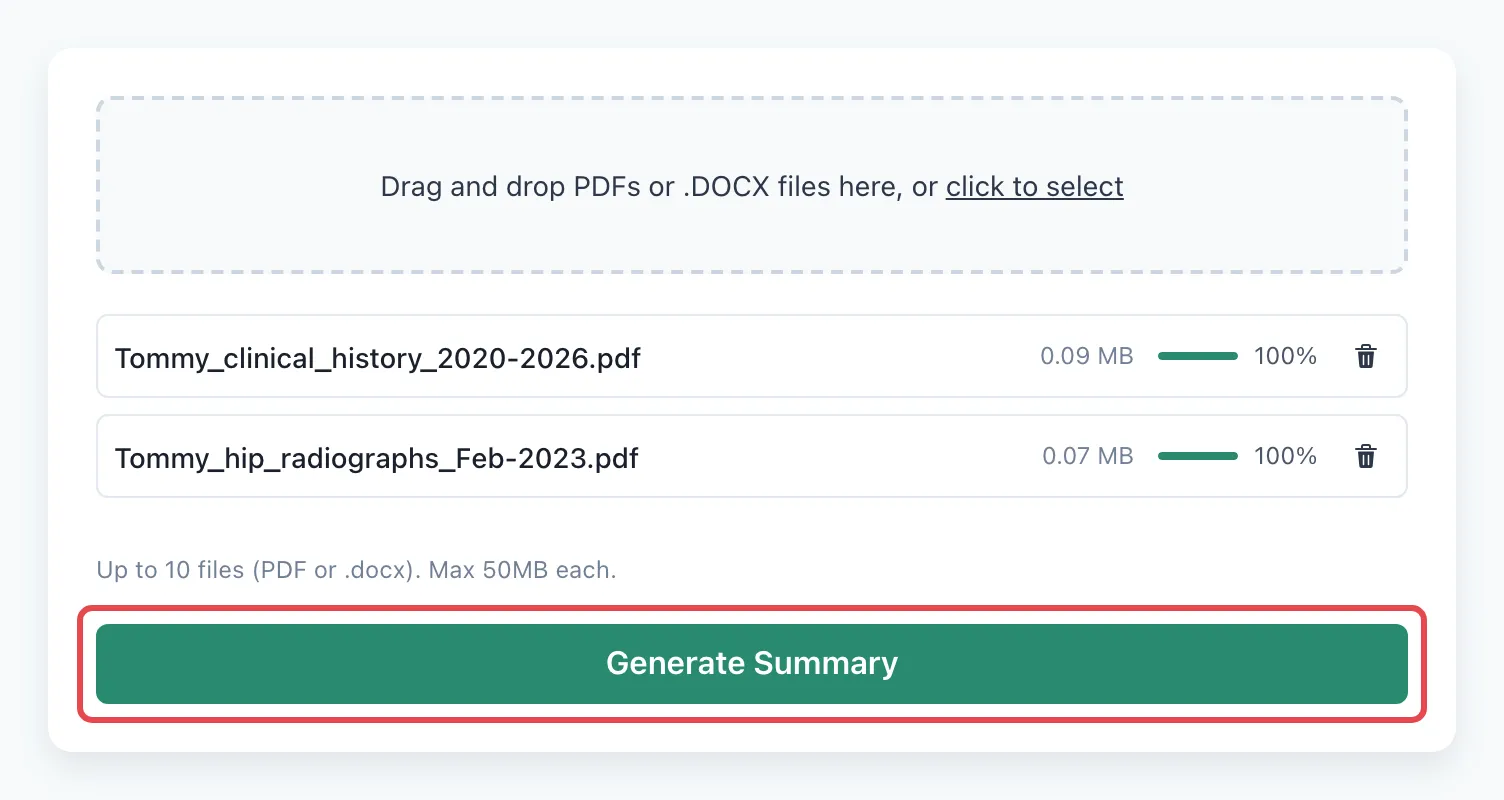
For example, add Tommy’s clinical history and his hip X-ray report from his old clinic. Each file shows 100% when it has finished uploading. To take a file out, click the bin next to it.
Step 3: Click Generate Summary
Section titled “Step 3: Click Generate Summary”When every file is uploaded, click Generate Summary. Wait while it reads the records.
Step 4: Check the summary and copy it
Section titled “Step 4: Check the summary and copy it”The patient’s name is at the top, with their ID if the records include one. Below it is the summary, with headings for things like allergies, diagnoses, test results and medications.
Read it, and click into it to change anything. Then click Copy and paste it into your notes or your PiMS.
Good to know
Section titled “Good to know”- Add up to 10 files at a time, up to 50 MB each.
- Upload records for one patient at a time.
- Always check the summary against the original records before you rely on it.
- Added another file? Click Re-generate summary. This replaces the summary, including any changes you made.
- Copy the summary before you leave the page. It isn’t there when you come back.
Who can use it
Section titled “Who can use it”There’s nothing to set up. You can use it on any paid plan or during your free trial. On the free plan, you’ll see Upgrade required when you click Generate Summary.