
Find, complete and archive recordings
Your recordings are listed on the VetNotes home page, under Your Recordings. The newest are at the top, grouped by day. Tick each one off when its notes are done, and archive old ones to keep your list short.
VetNotes usually names each recording after the pet, the owner and the reason for the visit, like Tommy Smith - osteoarthritis recheck. To change a name, open the recording and click its title.
Find a recording
Section titled “Find a recording”-
On the home page, click the magnifying glass next to Your Recordings.

-
Type part of the name in Search by Title, like “Tommy Smith”. Or pick a day in Search by Date.
-
Click Search. Click a title in the results to open it in a new tab.
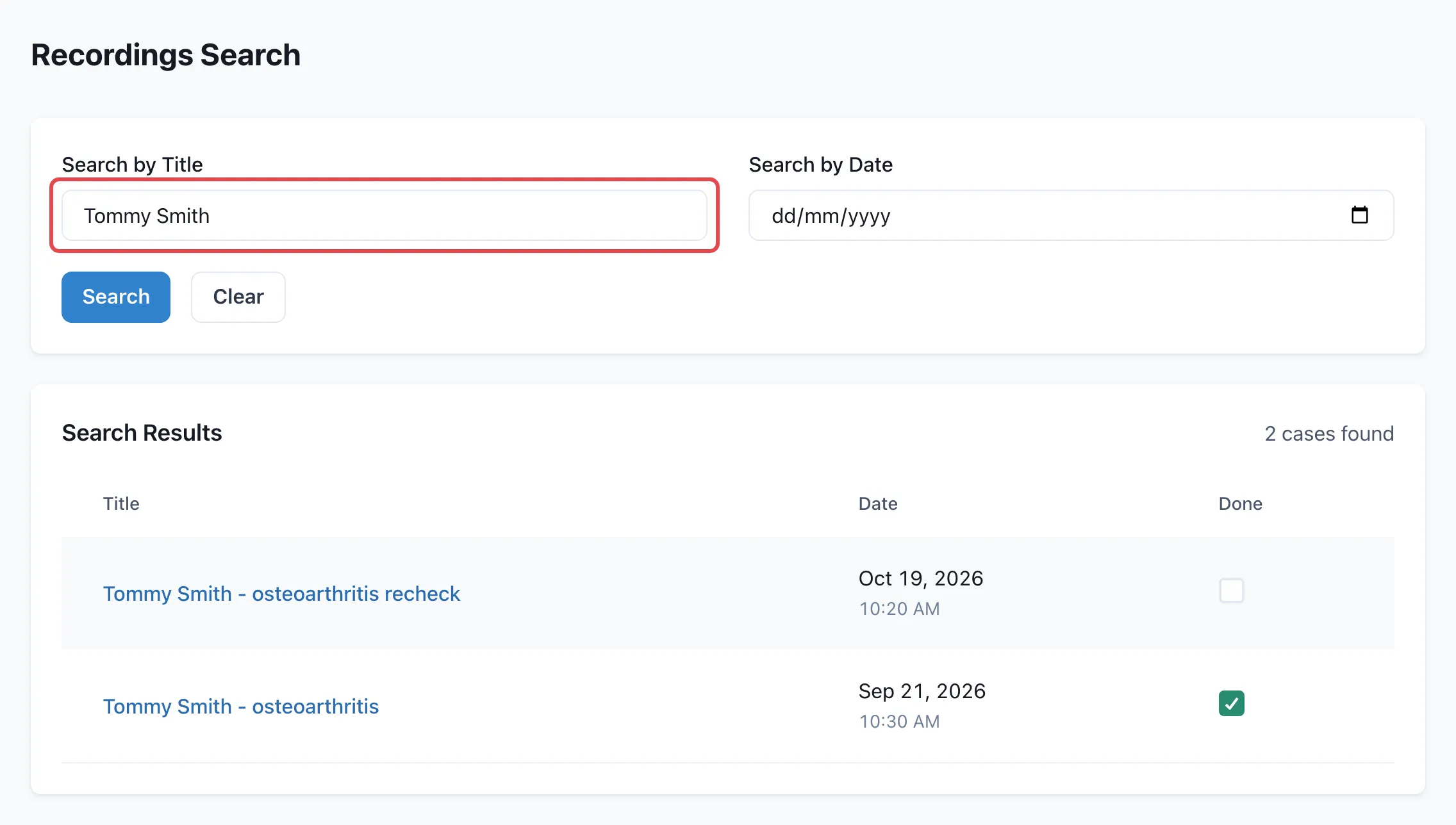
You can search by title or by date, but not both at once. Click Clear to start again. Search finds archived recordings too.
Mark a recording as complete
Section titled “Mark a recording as complete”When you’ve finished a recording’s notes, tick the box at the right of it in your list. Ticked recordings stay in your list, so you can see at a glance what’s still to do.
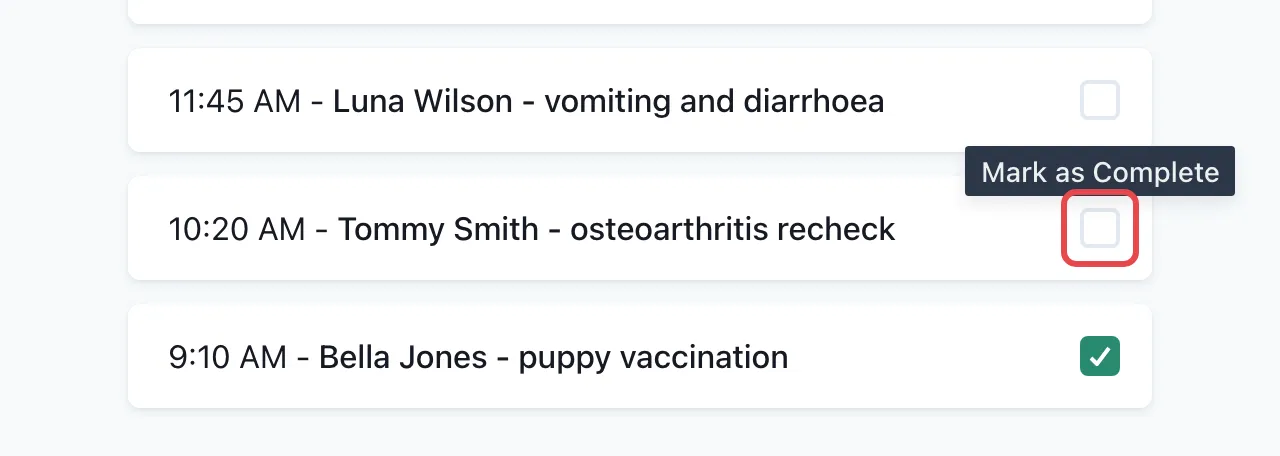
You can also tick the box next to the title at the top of a recording. To undo, click the tick again.
Archive a recording
Section titled “Archive a recording”Archiving takes a recording out of your list without deleting it.
- Open the recording.
- At the bottom of the page, click More → Archive.
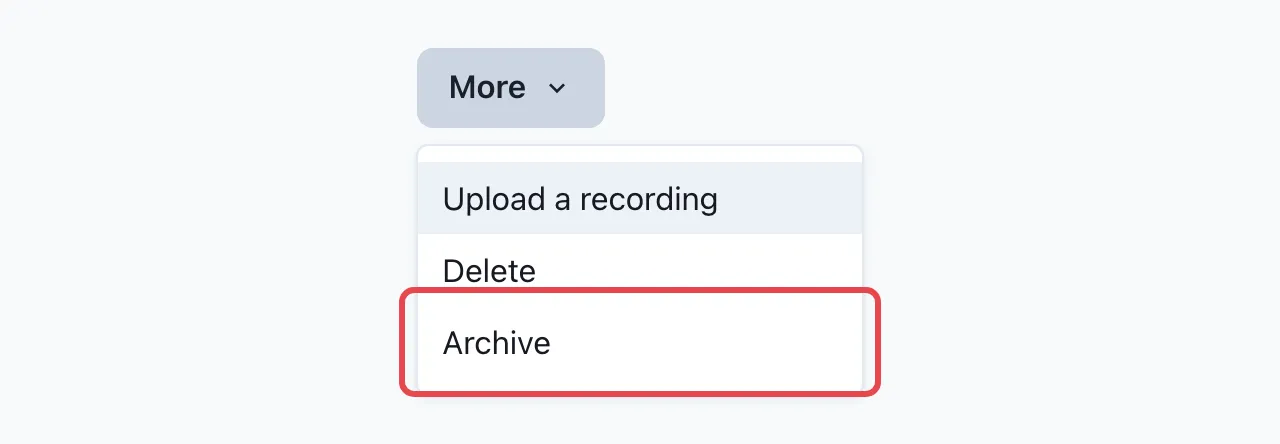
VetNotes shows Archived and takes you back to the home page.
See your archived recordings
Section titled “See your archived recordings”Click the archive button next to the magnifying glass. The heading changes to Archived Recordings. Click the button again to go back to your list.
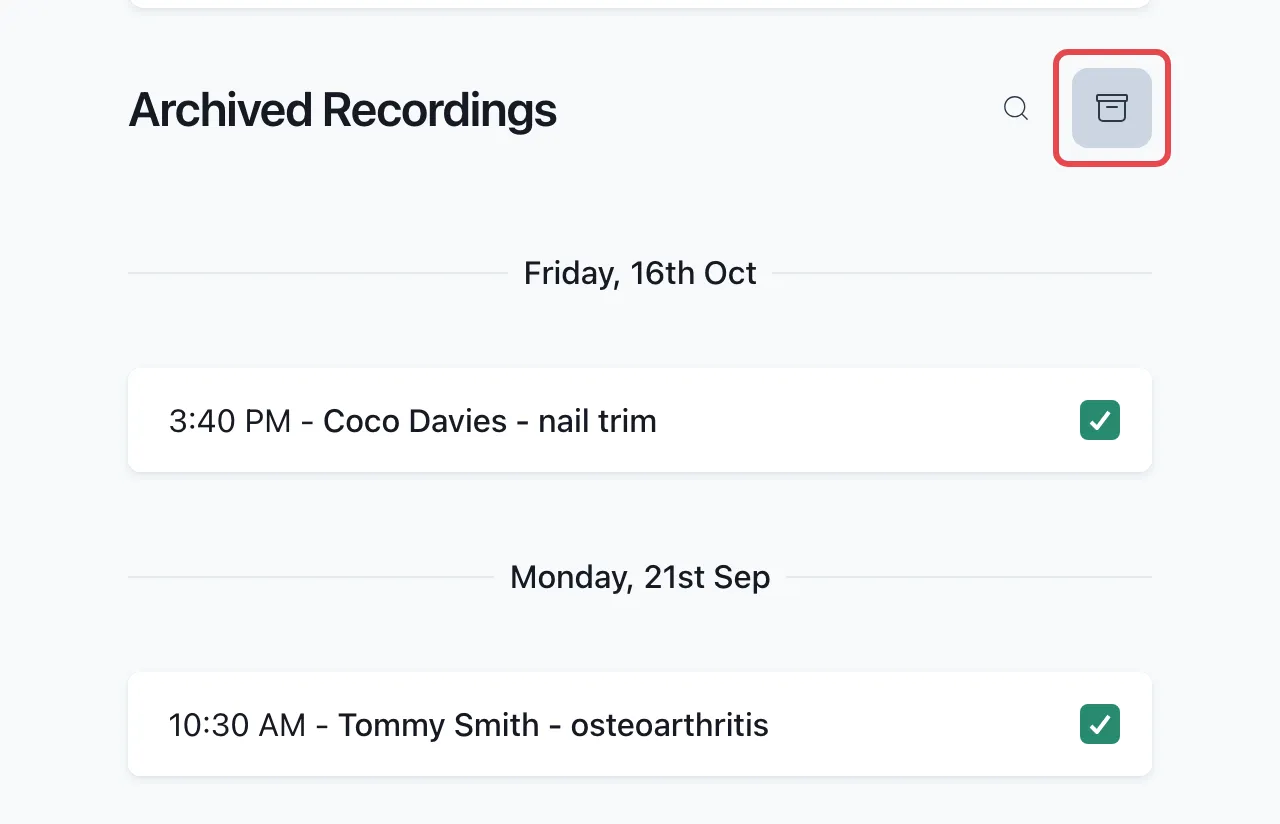
To bring a recording back, open it and click More → Archive again. VetNotes shows Unarchived, and the recording is back in Your Recordings.
Good to know
Section titled “Good to know”- You only see your own recordings, not your colleagues’.
- Your list shows 50 recordings at a time. Click Load More at the bottom to see older ones.
- More → Delete removes the recording, its transcripts and its notes for good. You can’t undo it, so archive anything you might need later.