
How to email a client
Send a note or a Clinical AI answer to a client in three steps.
Step 1: Create a note or ask Clinical AI
Section titled “Step 1: Create a note or ask Clinical AI”Start with what you want to send.
- A note. Record the consult as usual. A note written for the client, like a client summary, works best.
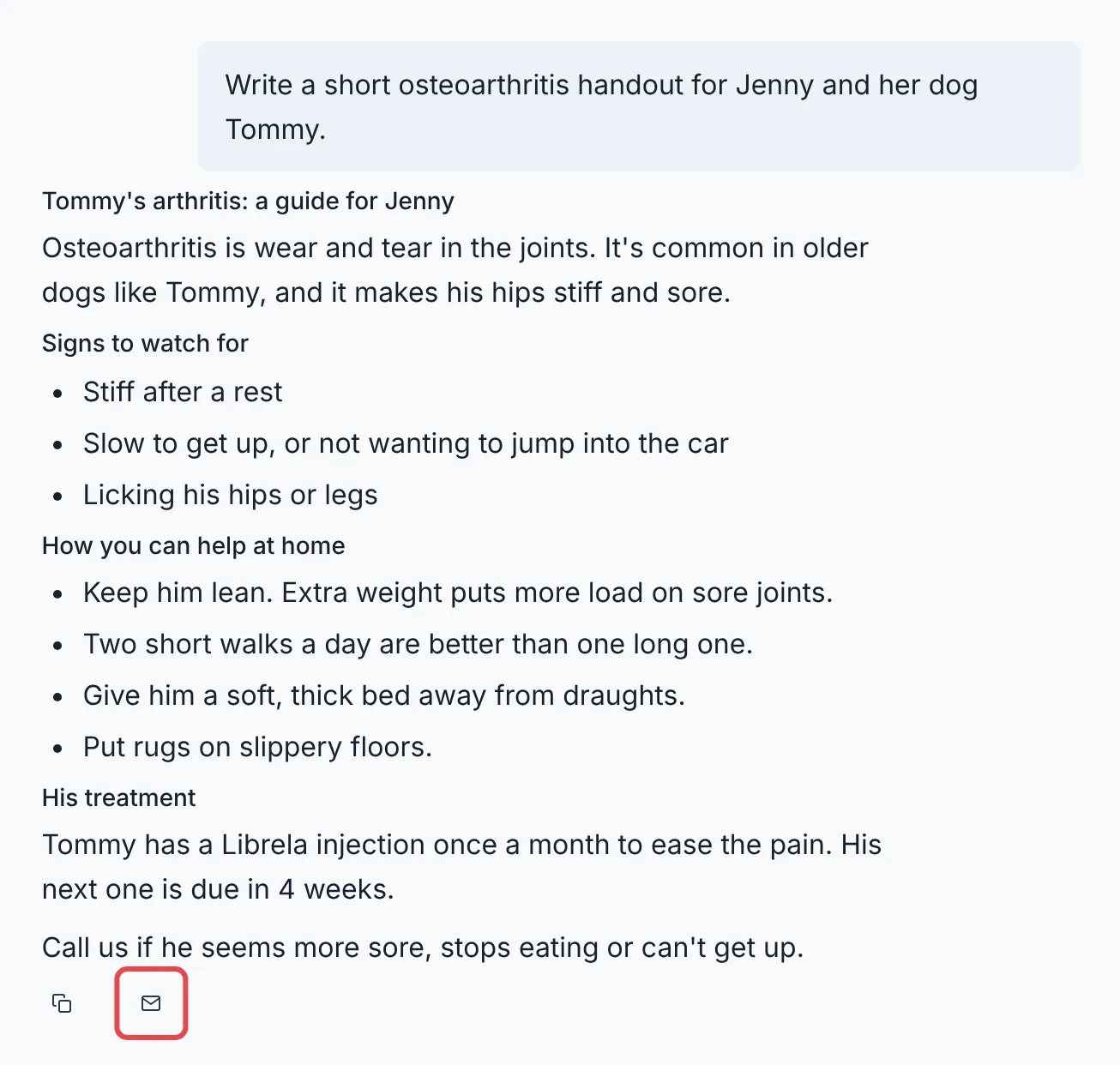
- Clinical AI. Ask for what you need. For example: “Write a short osteoarthritis handout for Jenny and her dog Tommy.”
Step 2: Click the email button
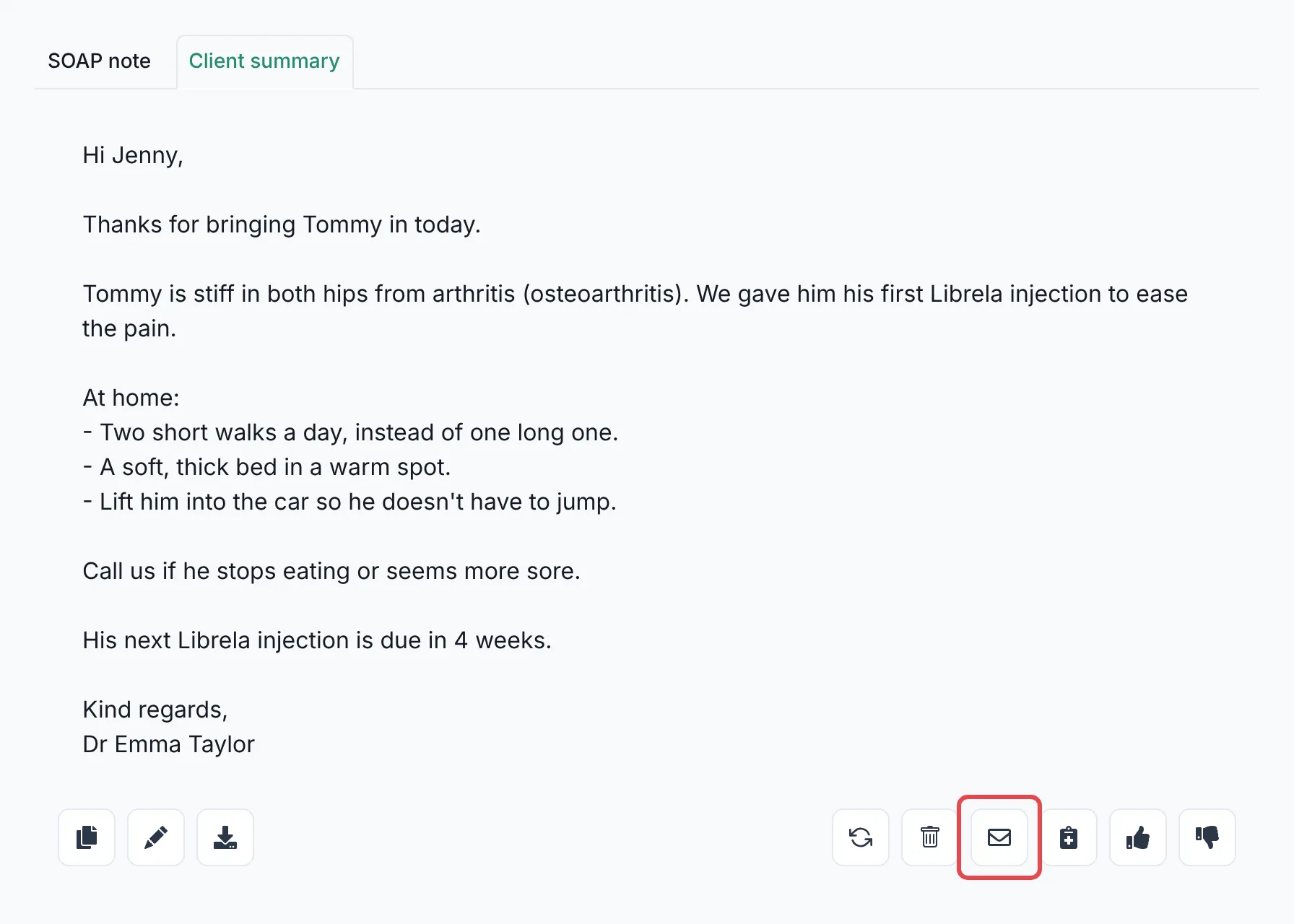
Section titled “Step 2: Click the email button”On a note, click the envelope button in the row of buttons under the note.
In Clinical AI, click the envelope icon under the answer.
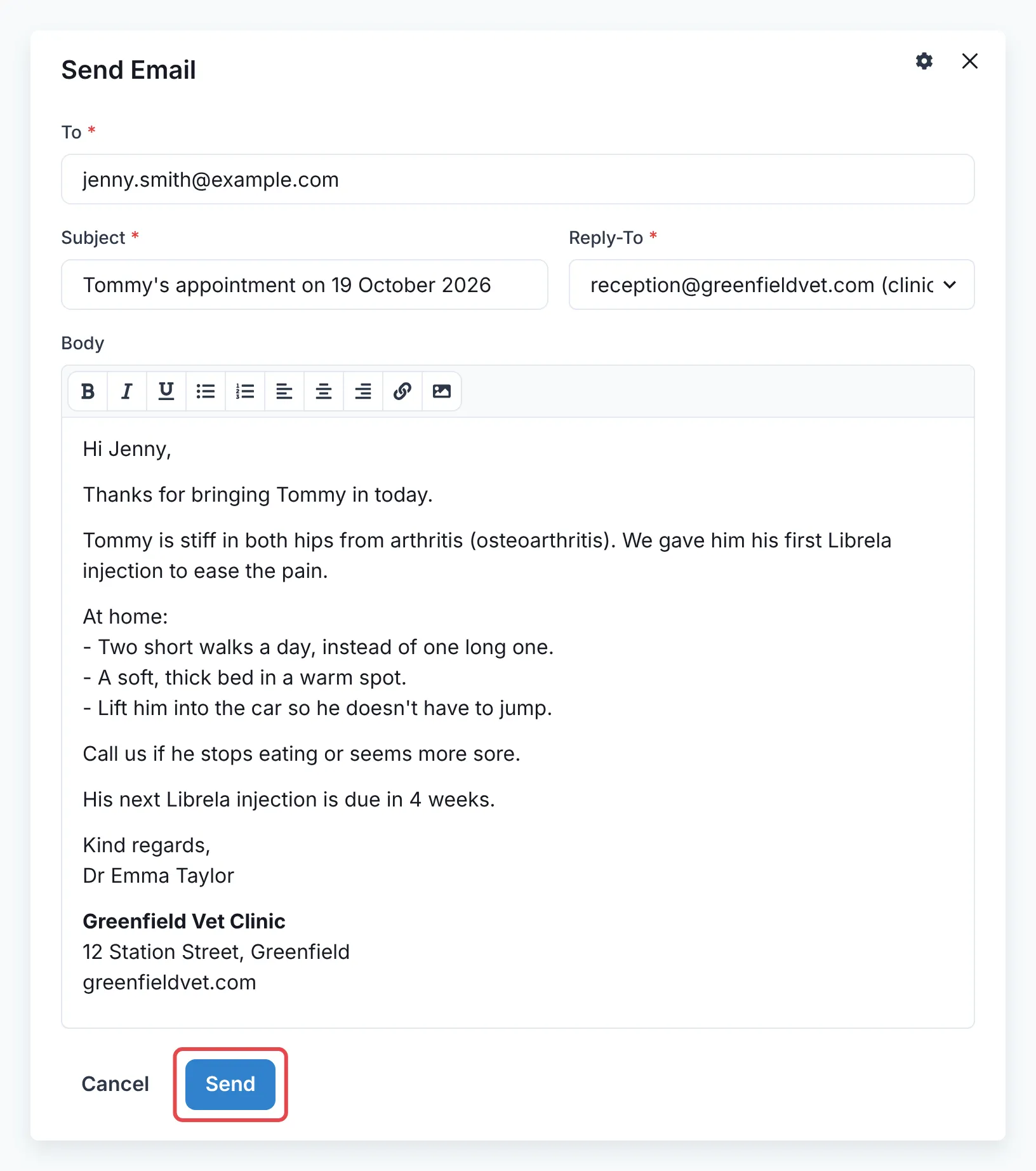
The Send Email window opens with your content already in it.
Step 3: Check the email and send it
Section titled “Step 3: Check the email and send it”- Check To. If the client’s email is in your PiMS, it’s filled in for you. If not, type it in.
- Check the Subject, for example “Tommy’s appointment on 19 October 2026”.
- Check Reply-To. This is where the client’s reply will go.
- Read the email and change anything you need to. Your clinic’s footer is already at the bottom.
- Click Send.
Good to know
Section titled “Good to know”- The email comes from VetNotes. A line at the bottom tells the client where to reply.
- You can send to up to 5 email addresses at once. Put a comma between them.
- Every email sent is saved in your clinic’s email log.
Integrations
Section titled “Integrations”If your clinic uses one of these PiMS integrations, emails about a consult are also saved to that client’s record:
- RxWorks: saved to the client’s communication log.