
How to use custom shortcuts
Add one of your clinic’s saved messages to Clinical AI in three steps.
Step 1: Click the lightning bolt in Clinical AI
Section titled “Step 1: Click the lightning bolt in Clinical AI”In Clinical AI, click the lightning bolt at the left of the message box.

Step 2: Choose a shortcut
Section titled “Step 2: Choose a shortcut”Your clinic’s shortcuts are at the top, under Custom. Click the one you want.
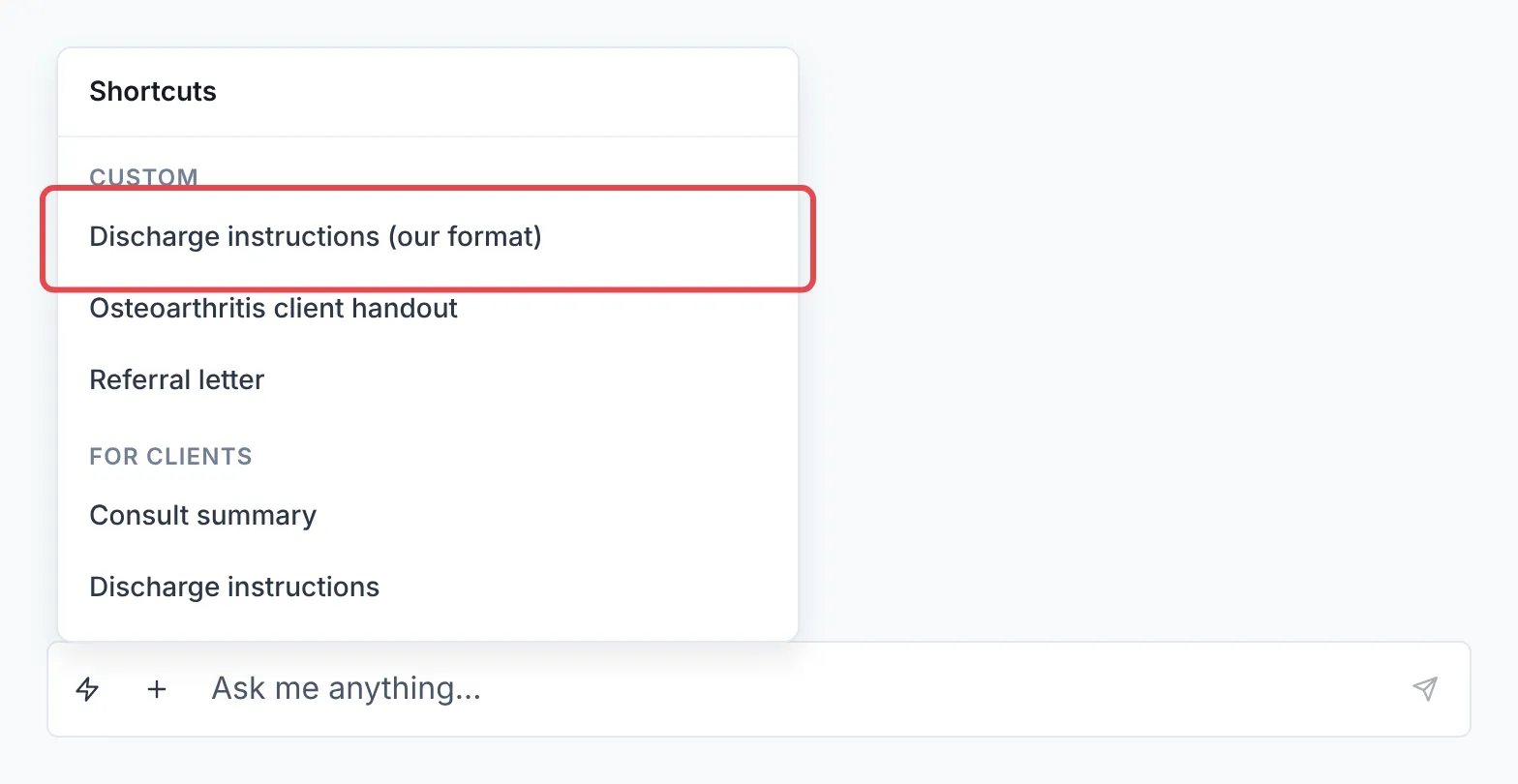
The shortcut’s message goes into the message box, where your cursor is.
Step 3: Add details and send
Section titled “Step 3: Add details and send”Add anything specific to this case, like the patient’s name. For example: “… for Jenny and her dog Tommy.” Then send it as normal.
Good to know
Section titled “Good to know”- Custom shortcuts are shared with everyone in your clinic.