
How to use tasks
Check the tasks from a consult, share them out, and tick them off when they’re done.
Step 1: Record the consult as usual
Section titled “Step 1: Record the consult as usual”Record Tommy’s recheck the way you always do. When the note is ready, VetNotes adds the follow-up tasks it heard, like “Book Tommy’s recheck in 4 weeks”.
Each task has a type: Booking, Client communication, Clinical follow-up, Records and admin, Charging or Other.
Step 2: Open the Tasks tab on the recording
Section titled “Step 2: Open the Tasks tab on the recording”On the recording, click the Tasks tab. The number in brackets is how many are still to do.
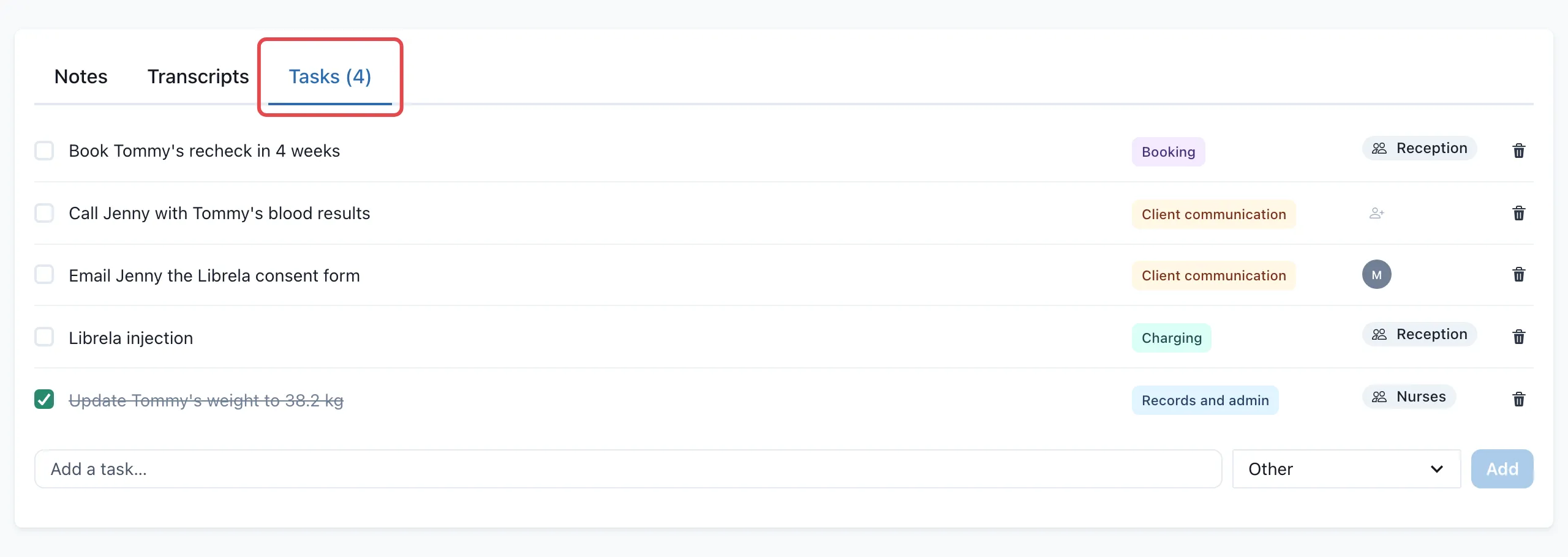
Here you can:
- Change a task. Click its words to edit them, or click its type to pick another.
- Add a task. Type it in Add a task…, choose a type, then click Add.
- Remove a task. Click the bin icon. This archives it.
Step 3: Assign a task
Section titled “Step 3: Assign a task”Click the person icon next to a task.
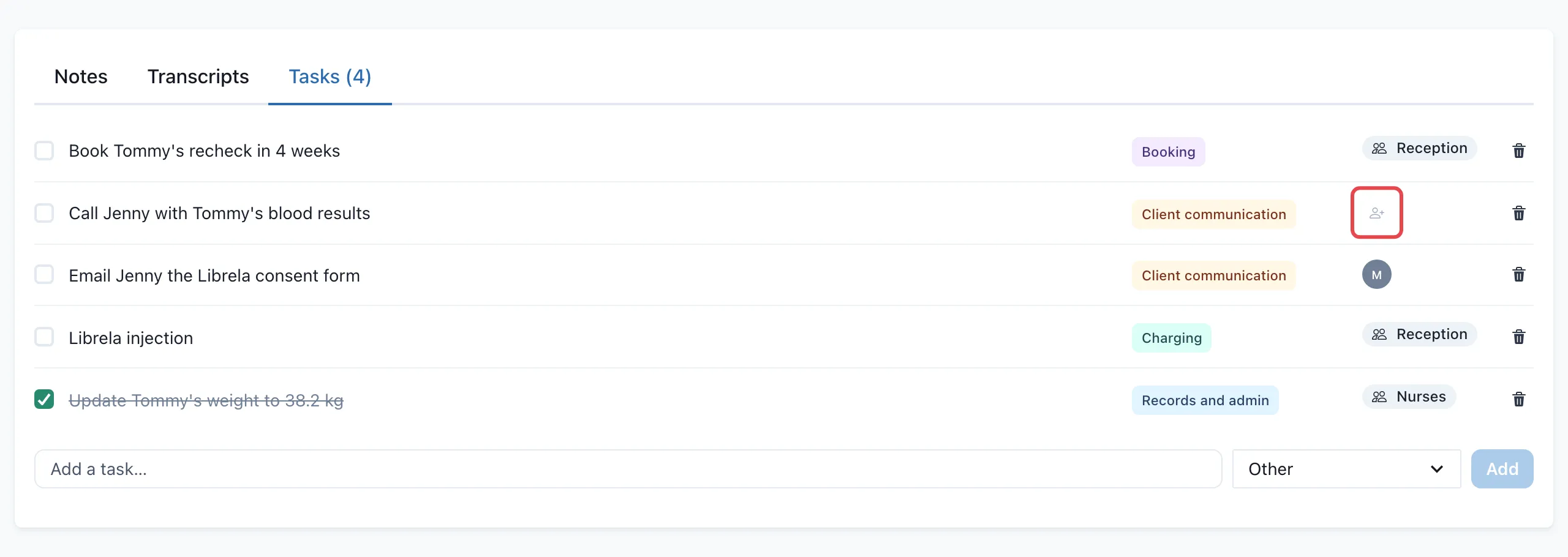
Choose someone under Team, or a role under Roles. To add a role like “Reception”, click New role…, type the name and press Enter.
Step 4: Tick it off
Section titled “Step 4: Tick it off”When the job is done, tick the box next to it. The task is crossed out and moves to Done.
Step 5: See all your tasks on the Tasks page
Section titled “Step 5: See all your tasks on the Tasks page”Click Tasks in the top bar. You see every task that’s still to do, newest first. Use the filters to narrow the list by status, person or role, type and date.
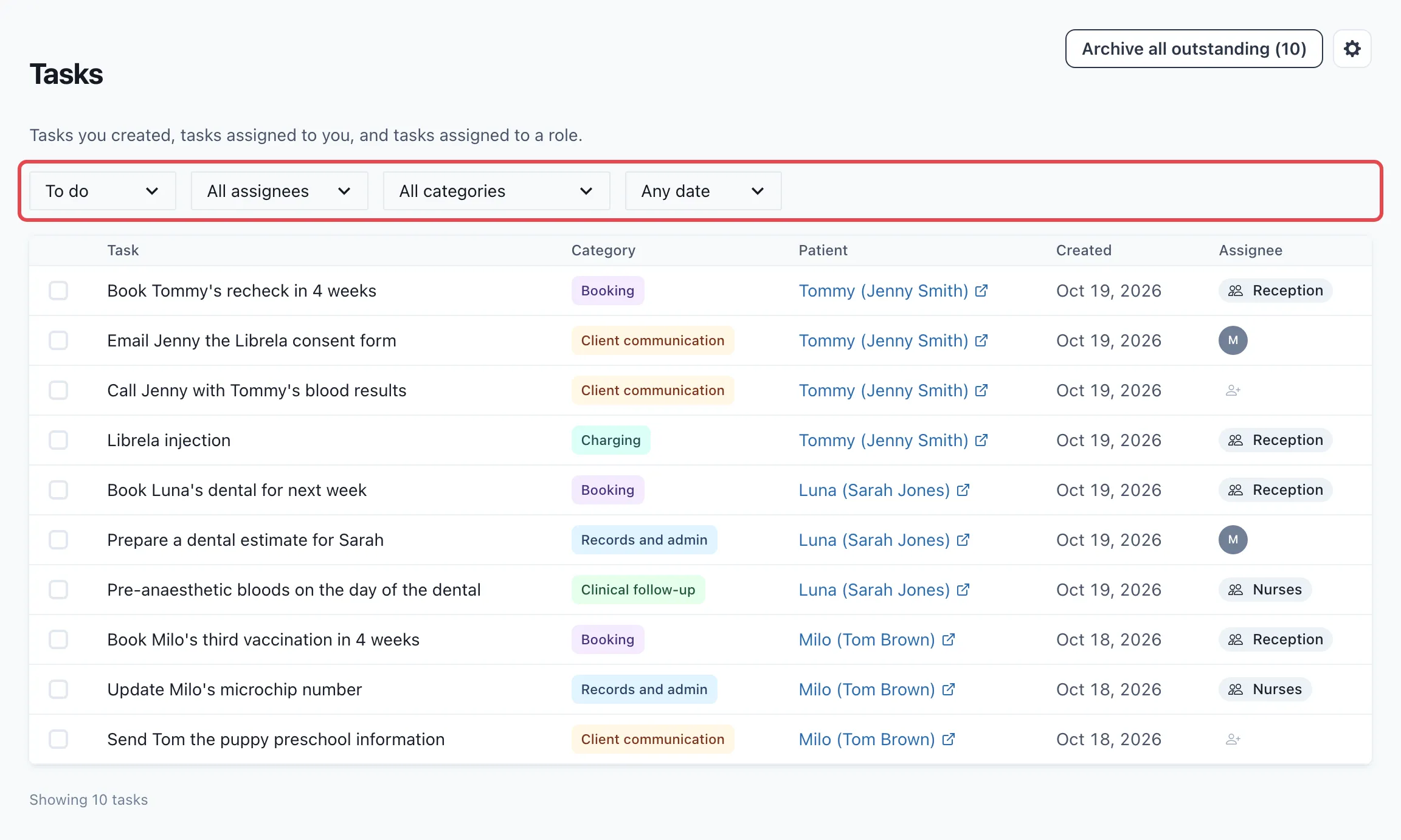
To open one of your recordings, click the patient’s name.
Good to know
Section titled “Good to know”- You see tasks you created, tasks assigned to you, and tasks assigned to a role. Tasks assigned to someone else are only shown to them and the vet who recorded the consult.
- Tasks assigned to a person show their initials. To change yours, click your initials in the top bar, then Edit Initials.
- If you extend a recording, VetNotes updates its tasks. Tasks you’ve added or changed stay as they are.
- Archive all outstanding archives every to-do task that matches your filters. Archived tasks are still there under the Archived filter.
Next: How to set up tasks