
Chrome Extension - Microphone Access Denied
If the VetNotes extension shows Microphone access needed in red, or an error saying microphone access was denied, Chrome is blocking the extension from using your microphone.
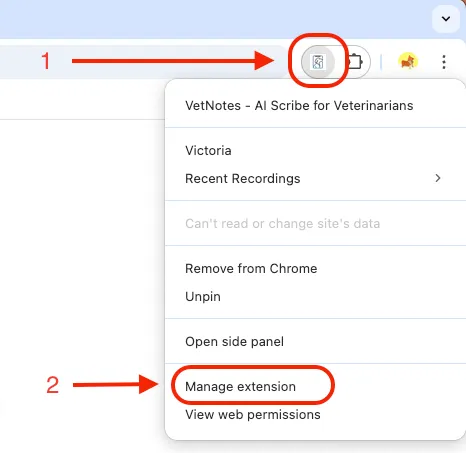
Here’s how to fix:
The quickest way is to click Microphone access needed in the extension. Chrome opens the extension’s settings. Change “Microphone” to “Allow”, then go back to the original page and refresh it.
Or, do it by hand:
- Right click the VetNotes icon in the top right
- Click “Manage Extension”
- Click “Site Settings”
- Change “Microphone” to “Allow”
- Go back to the original page and refresh it.
If the above does not work, please contact support@vetnotes.com